
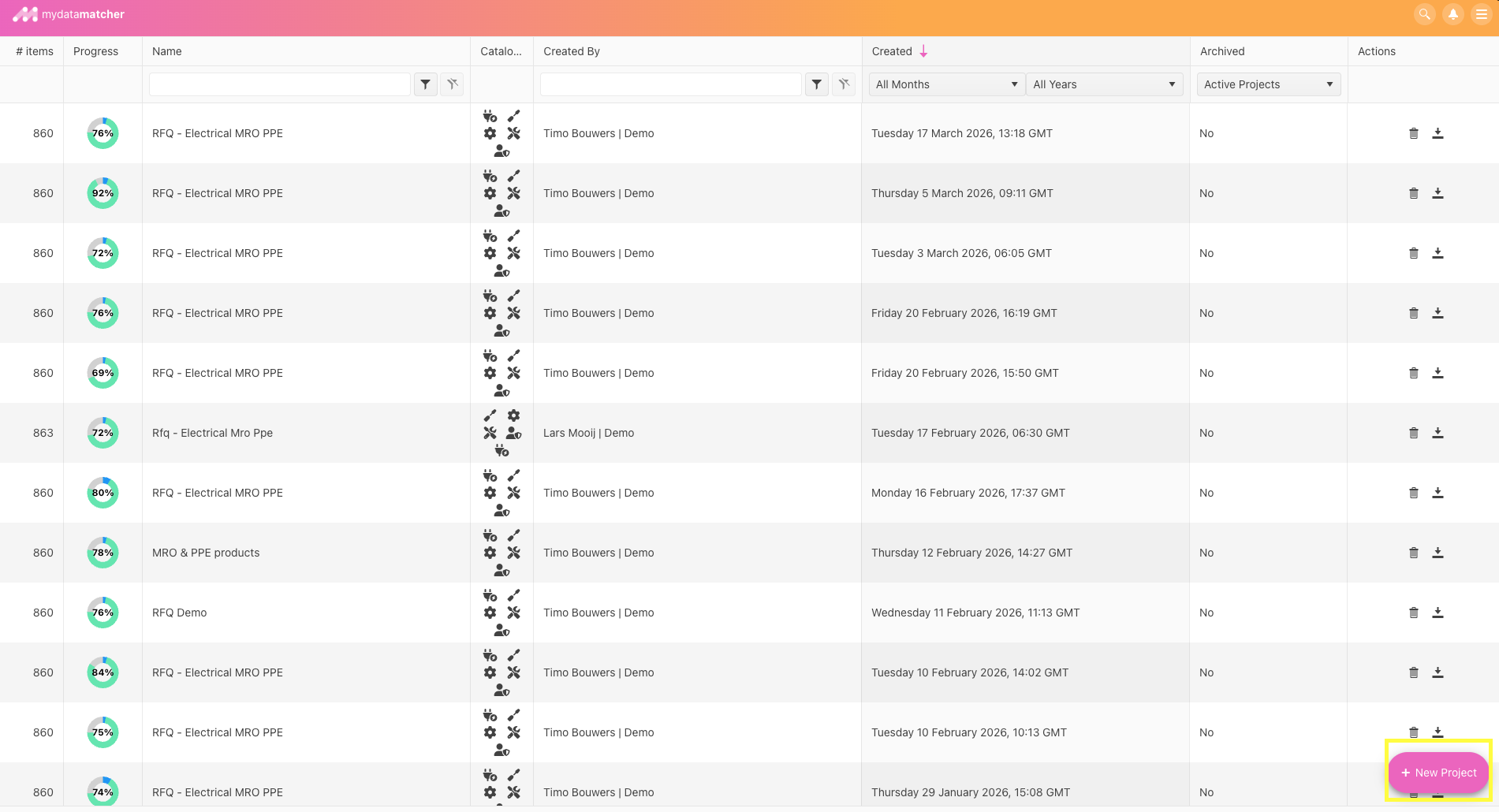
The yellow frame in the right corner below will allow you to start a new project.
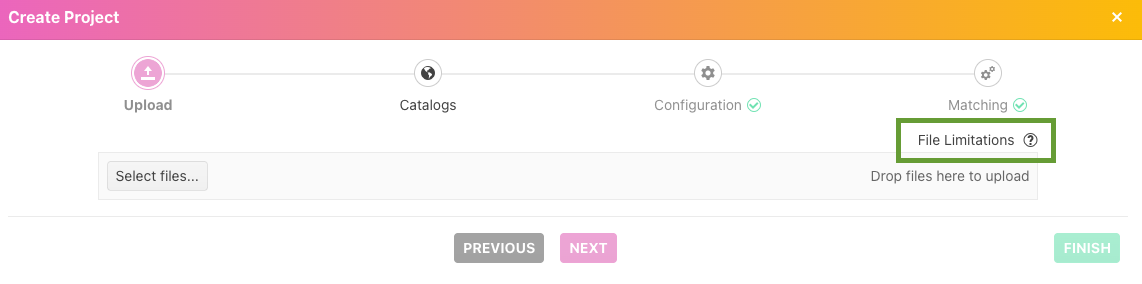
Step one in creating a project is to upload a file. This can be a single tab excel, csv or a pdf (there are file limitations explained. Select the ? in the green frame). You can either use the select file option or drag and drop the file in ‘select files’.
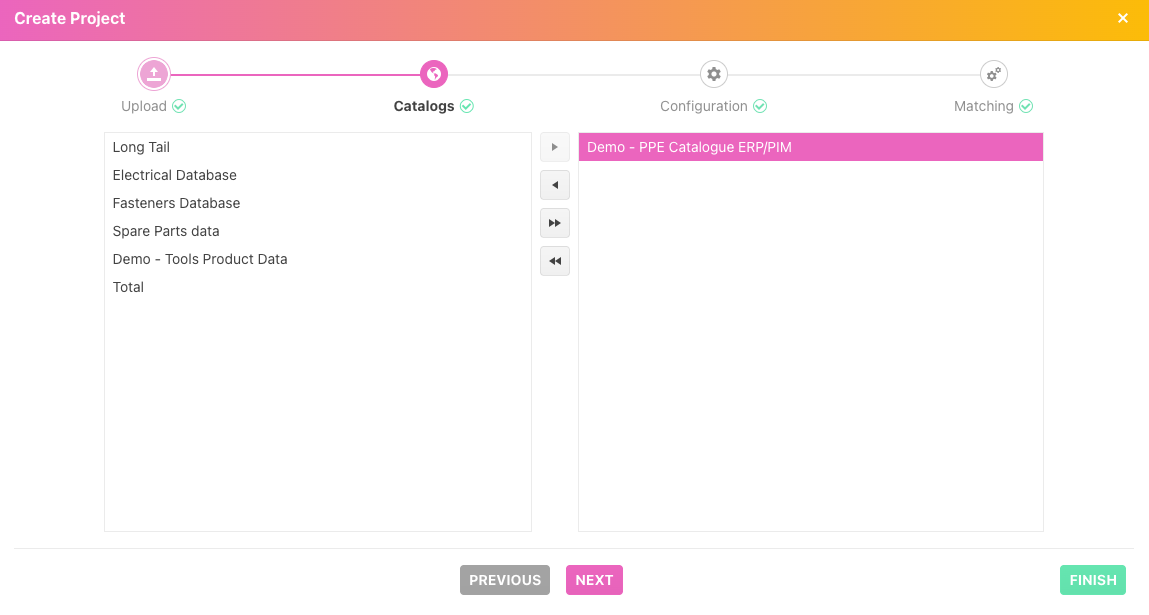
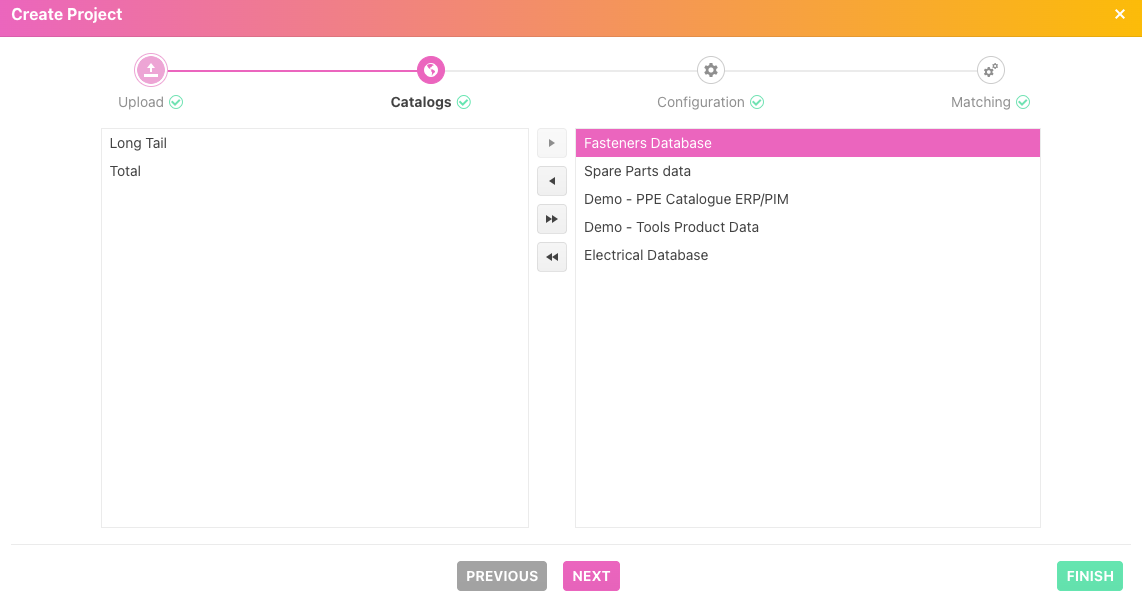
Step two in creating a project is to select catalogs that you want to include in the matching project. You can select/de-select them all in once step by using the double arrows icons or select/de-select them individually via the single arrow icon.
Drag and drop the catalog up and down; can change the order number of the catalogs. This can influence the sequence of the candidates presented in the matching (in case of equal overlap). The first catalogs candidate will be on top.
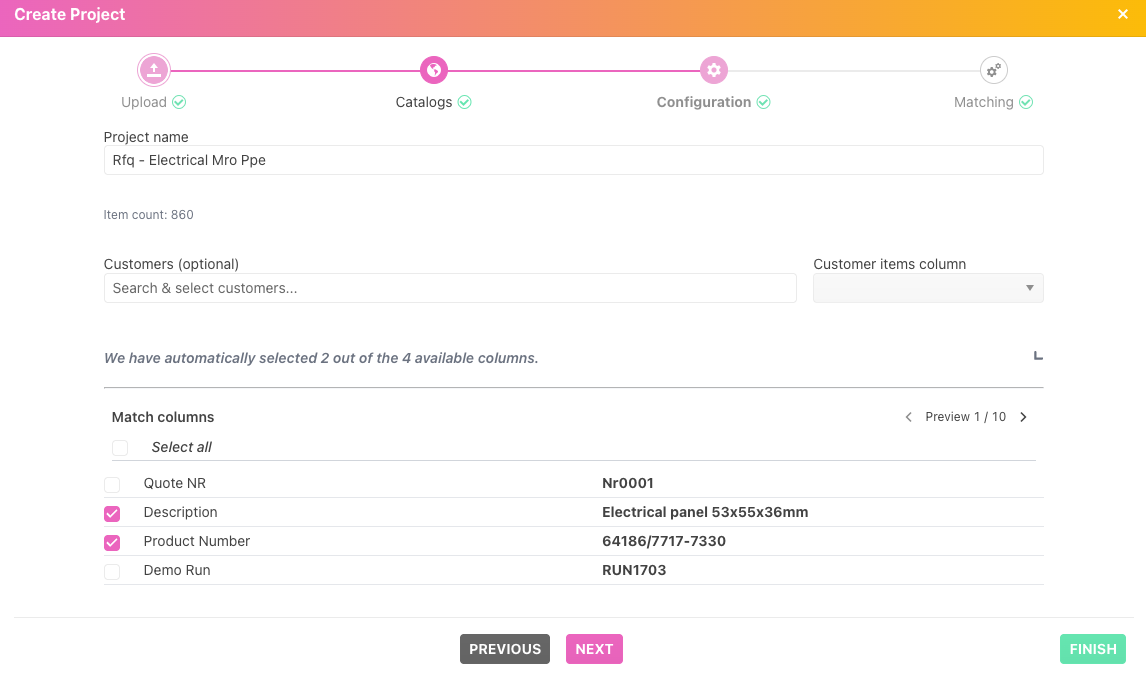
Step three in creating a project. Here we have an auto-column selector in place. Through the use of AI, the relevant columns for matching are pre-selected for you when starting a project. You always have the possibility to check/uncheck the selected columns from the uploaded file to use for the matching.
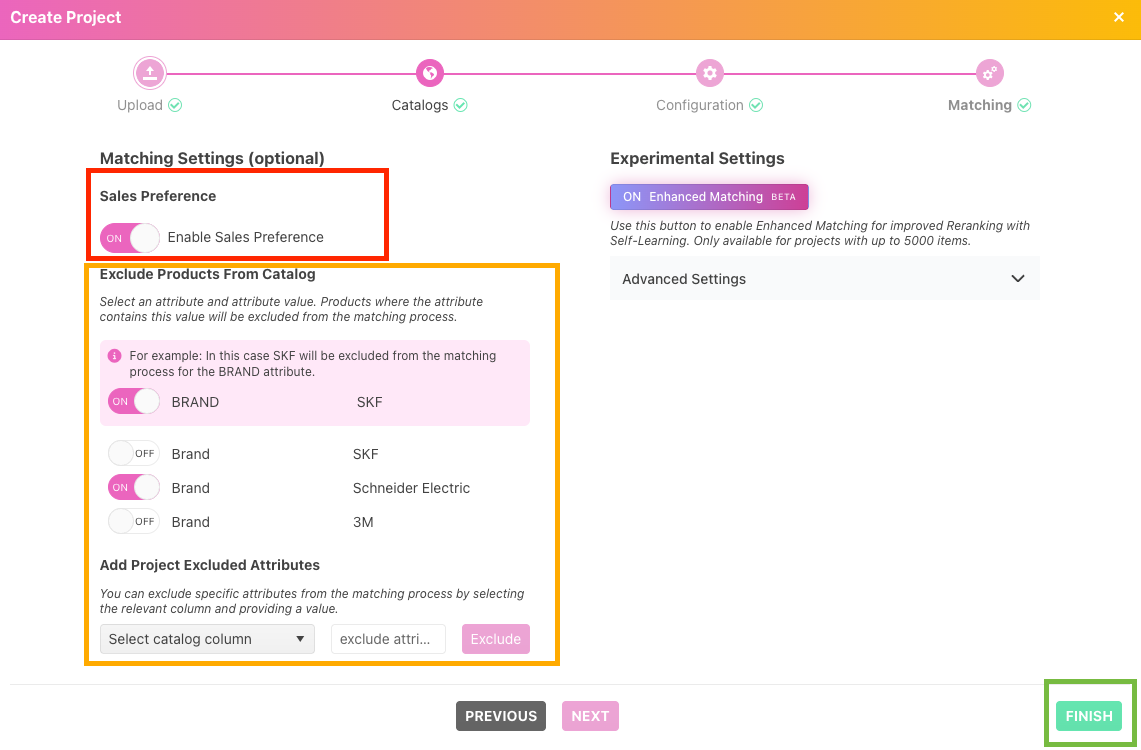
Step four in creating a project you can select some optional settings:
In the red frame you can enable sales preferences. Sales preferences are configurated in the backend and will for example, boost the preferred supplier in case of a candidate that meets the requirements of the requested article.
In the orange frame you can exclude certain candidate for being proposed, for example an article of a certain manufacturer or an article with a certificate. Exclude rules can be configured in the backend (in case of frequent usage) or on the fly. The examples show an exclude on SKF which can be switched on and off by a toggle. By selecting a column and entering a value, an exclude rule can be created in the fly.
In the green frame click next to allow the project to start matching items for you or suggest the best candidates.