
When you have more than one catalogue and you want to merge columns for export needs, you need to take the following steps:
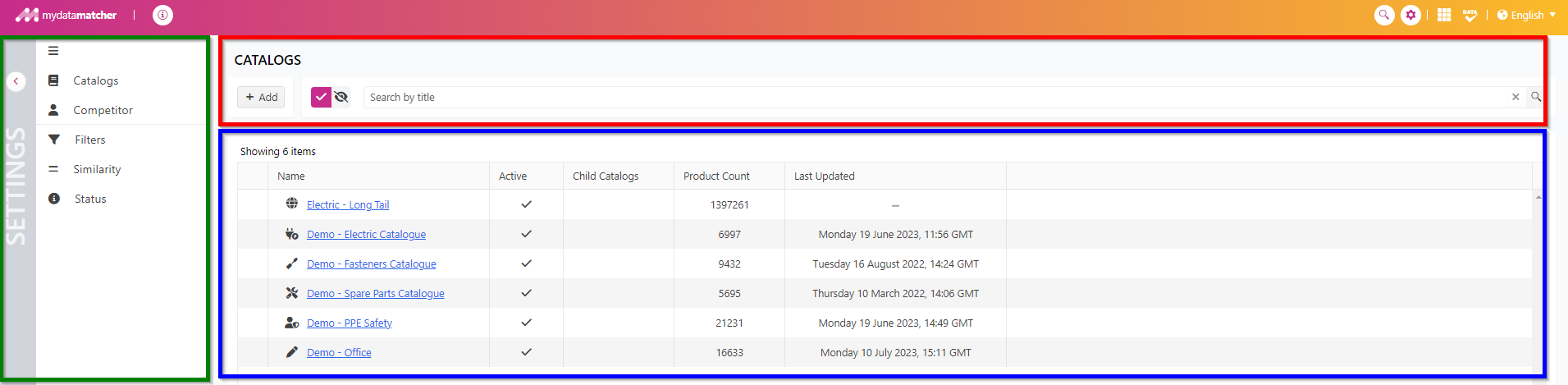
In the blue frame, you select the 1st catalogue.
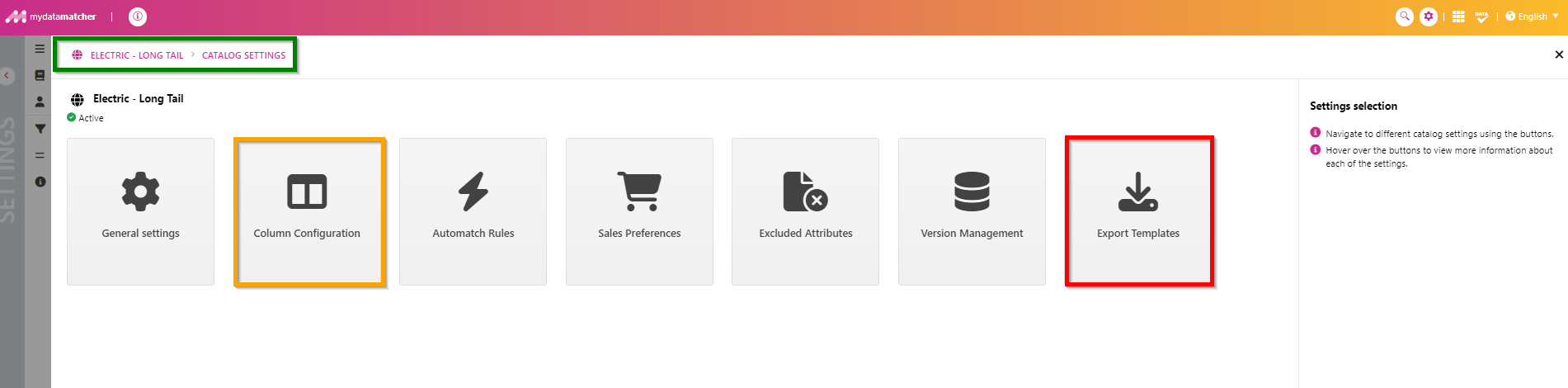
Here you are in the settings page for the catalog you have selected, as you can see in the green frame.
In the orange frame, you select column configuration
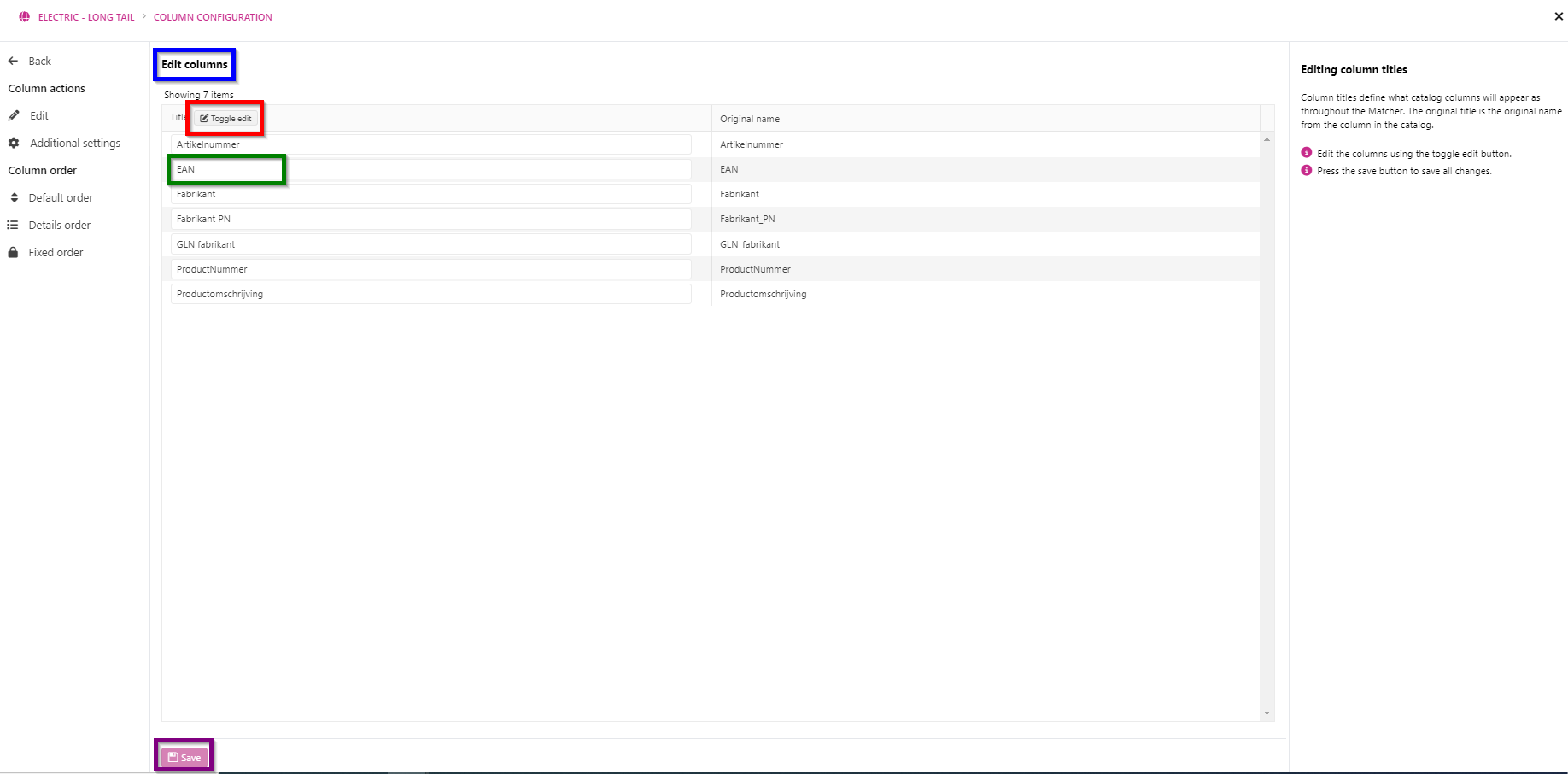
In the blue frame, you can see that you are now in Edit columns for the catalogue that you selected.
Click Toggle edit in the red frame.
You can now see that the fields can be edited.
As in the green frame, pick one. E.g. EAN. And re-name the column header as you would re-name the column header in the following catalogue.
In the purple frame, click Save.
You need to do this for every single catalogue, in order to have the columns merged into one when exporting.
It has to be exactly the same column header name.