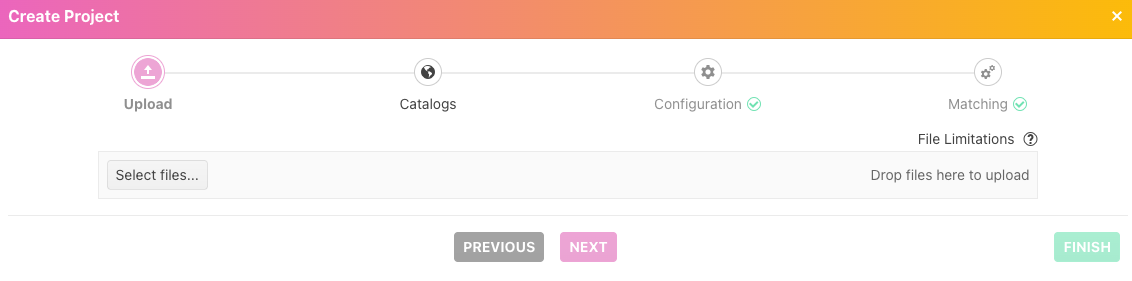
Once you have selected to go to the Mydatamatcher, you will land on the project overview window.
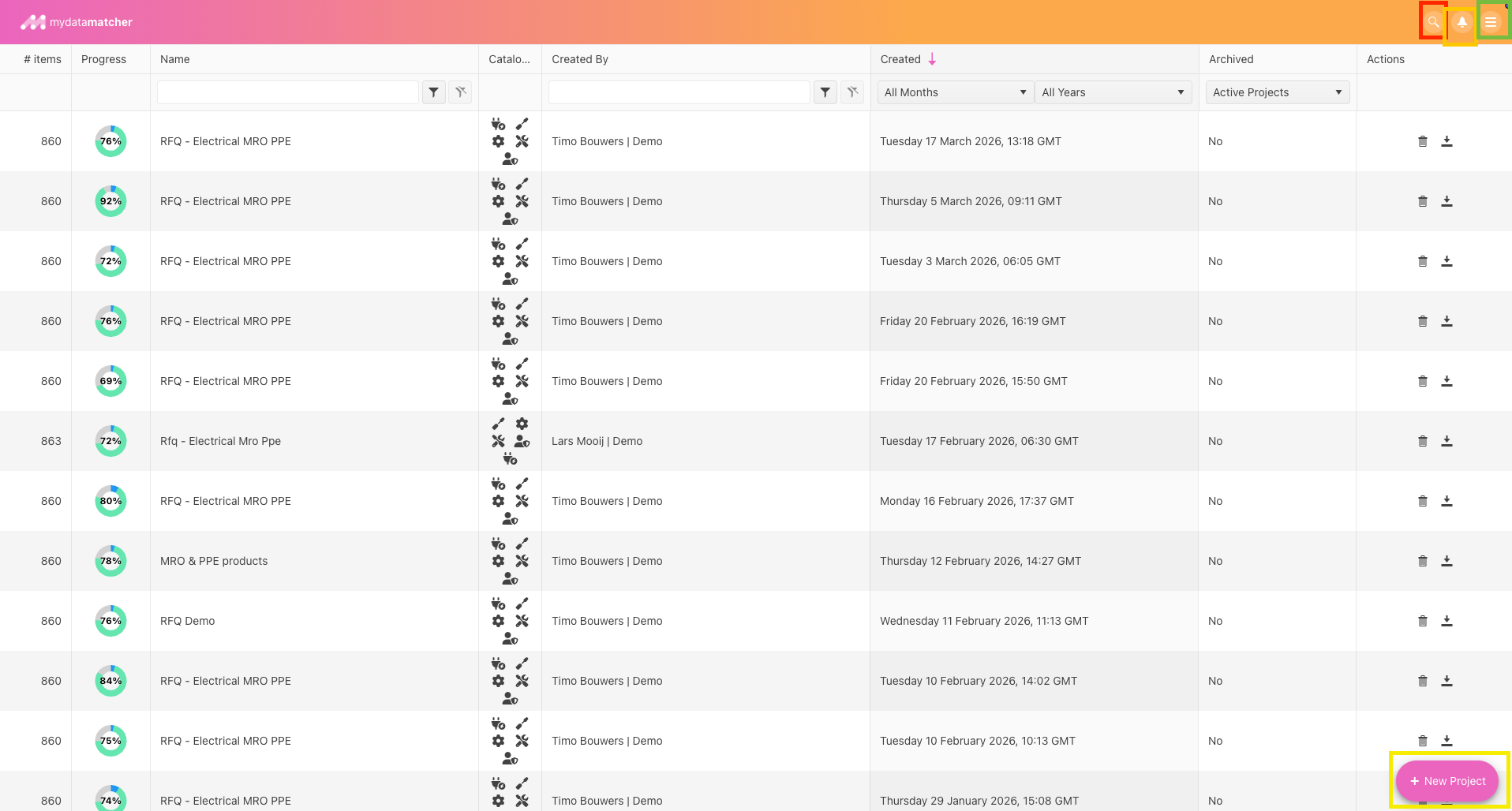
The columns from left to right contain the following information:
-
Items: number of product lines that have been uploaded in the project
-
Progress: progress on the project. Green is matched, blue is Handled, grey is ‘Todo’. If you hoover over the diagram, the actual numbers are displayed
-
Name: the name of the project
-
Catalog: displays the catalogs that have been selected for the project
-
Created by: the person who has created the project
-
Created: date and time the project has been created
-
Archived: whether the project has been archived or not
-
Actions: here you can select two actions:
-
By selecting the bin icon you archive the project
-
By selecting the download icon you can download the project with a number of format options
-
Right top corner of the screen

-
Red frame: Selecting the magnifying glass icon brings you to the Mydatasearch
-
Orange frame: Bell icon will have red color pop-up, when notifying user on new updates

-
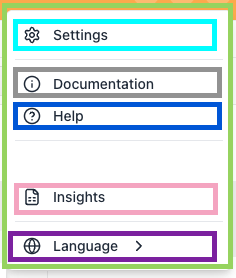
Green frame: Access to additional information as per below:
-
-
Light blue frame: Will bring you to the configuration settings. This is only available for key-users.
-
Grey frame: Will bring you to the Mydatamatcher user-manual
-
Dark blue frame: Selecting the questionmark icon will give you the option to raise a ticket. The ticket will directly land in our ticketing system.
-
Pink frame: Insights will allow you to run reporting on projects done.
-
Purple frame: Here you can change language settings (7 options)
Right below corner of the screen
-
Yellow frame: you will see the wizard for creating a “New Project”
For next step see “Starting a new project”