
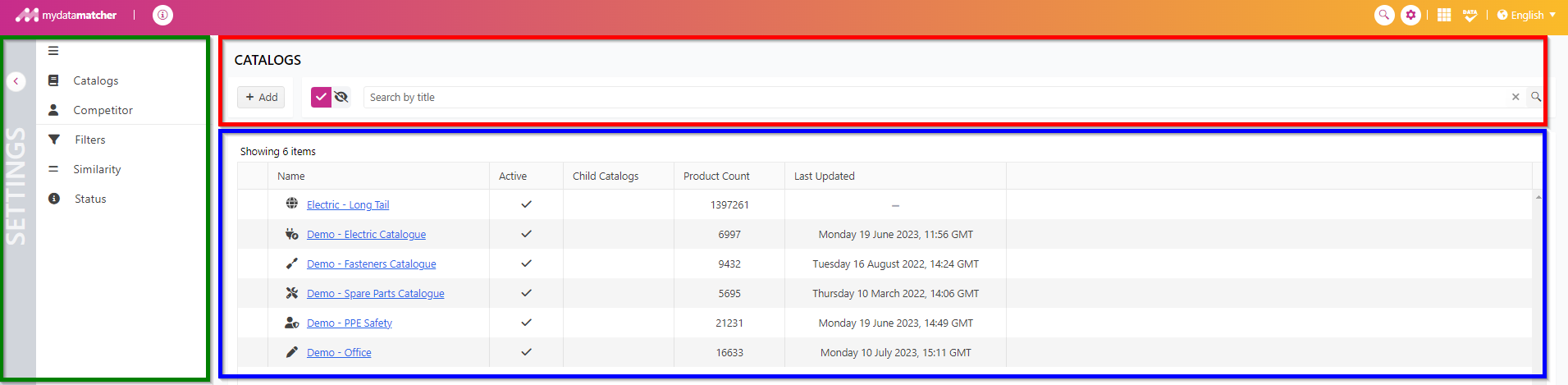
By clicking on the setting icon on the upper right, you will land in the administration window (if you have permissions). The new administrator console enables to manage competitor and catalog data. And now also features export templates. Other options will be available soon in the new console, but can be reached today via the menu’s overview using Mydatatagger and Mydataconfigurator.
By clicking on one of the catalogs in the blue frame, you will get an option to create export templates.
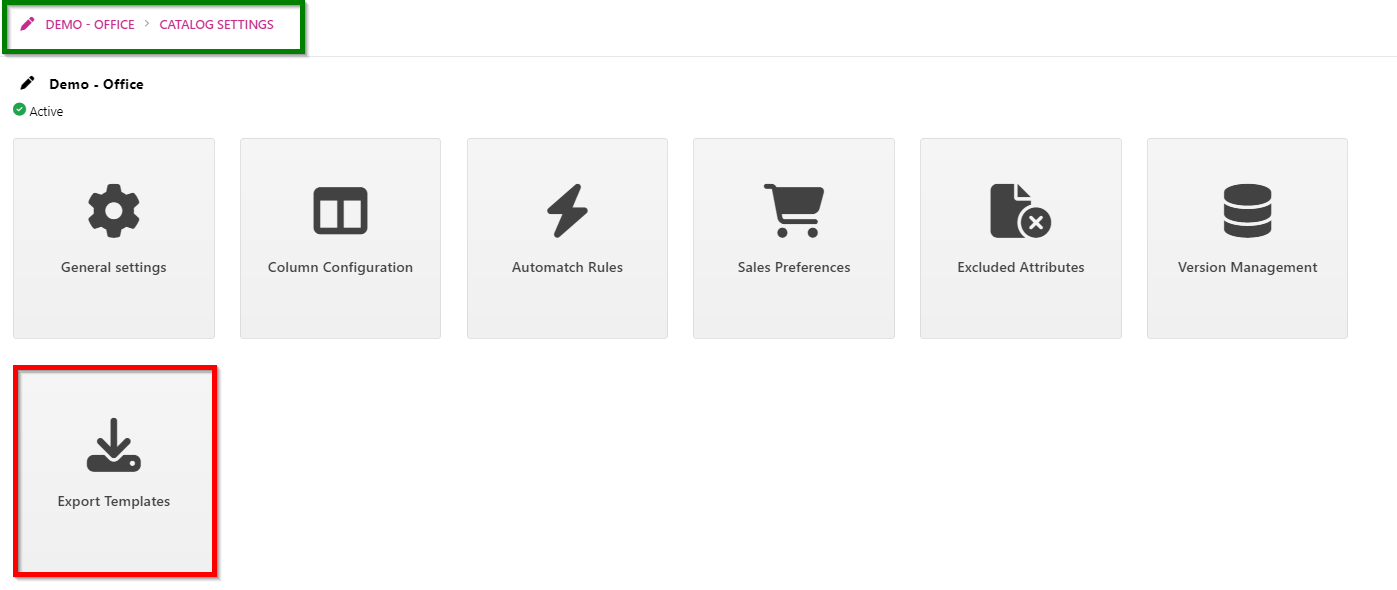
Here you are in the settings page for the catalog you have selected, as you can see in the green frame.
When you click on export templates in the red frame, you will be able to create export templates that define what the export file will look like when exporting a project.
Multiple export templates can be defined that allow for quick one click export across all projects.
The following actions can then be performed in the project export settings:
-
Select certain columns for the export file.
-
Define the column order of the export file.
-
Disable/enable additional settings like single tab export, merge catalogs and more (this is part of the export function).
-
Define a default template that will be used when no other templates are needed.
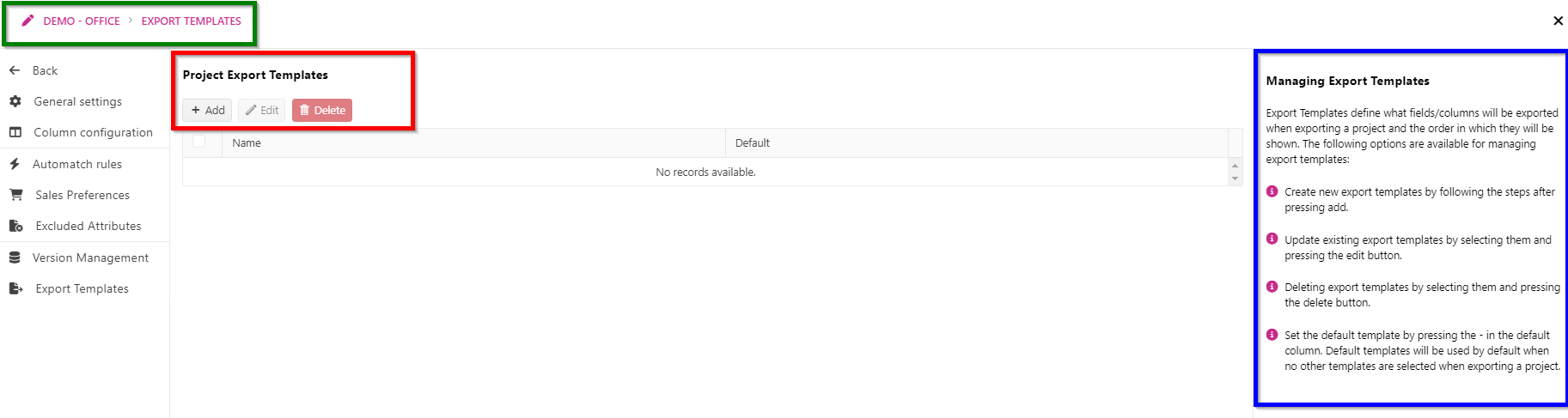
In the green frame you can see in which catalog you are creating export templates
In the red frame you can Add, Edit or Delete the templates that have been created.
In the blue frame there is an explanation on how to manage the export templates that have been created.
Export Templates define what fields/columns will be exported when exporting a project and the order in which they will be shown.
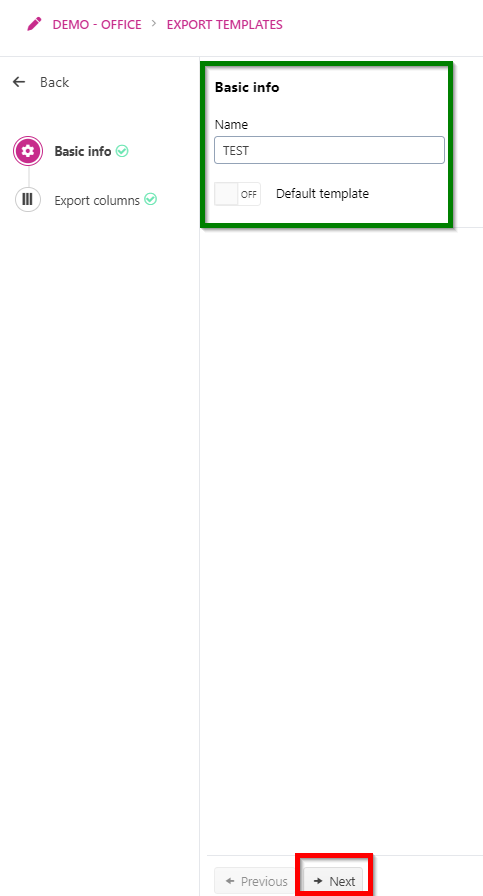
When you have clicked on Add, you will be directed onto this screen.
In the green frame:
Set the name of the export template.
Different templates cannot have the same name!
Default templates will be used by default when no other templates are selected when exporting a project.
Only one template can be the default template!
In the red frame, click next when you are done.
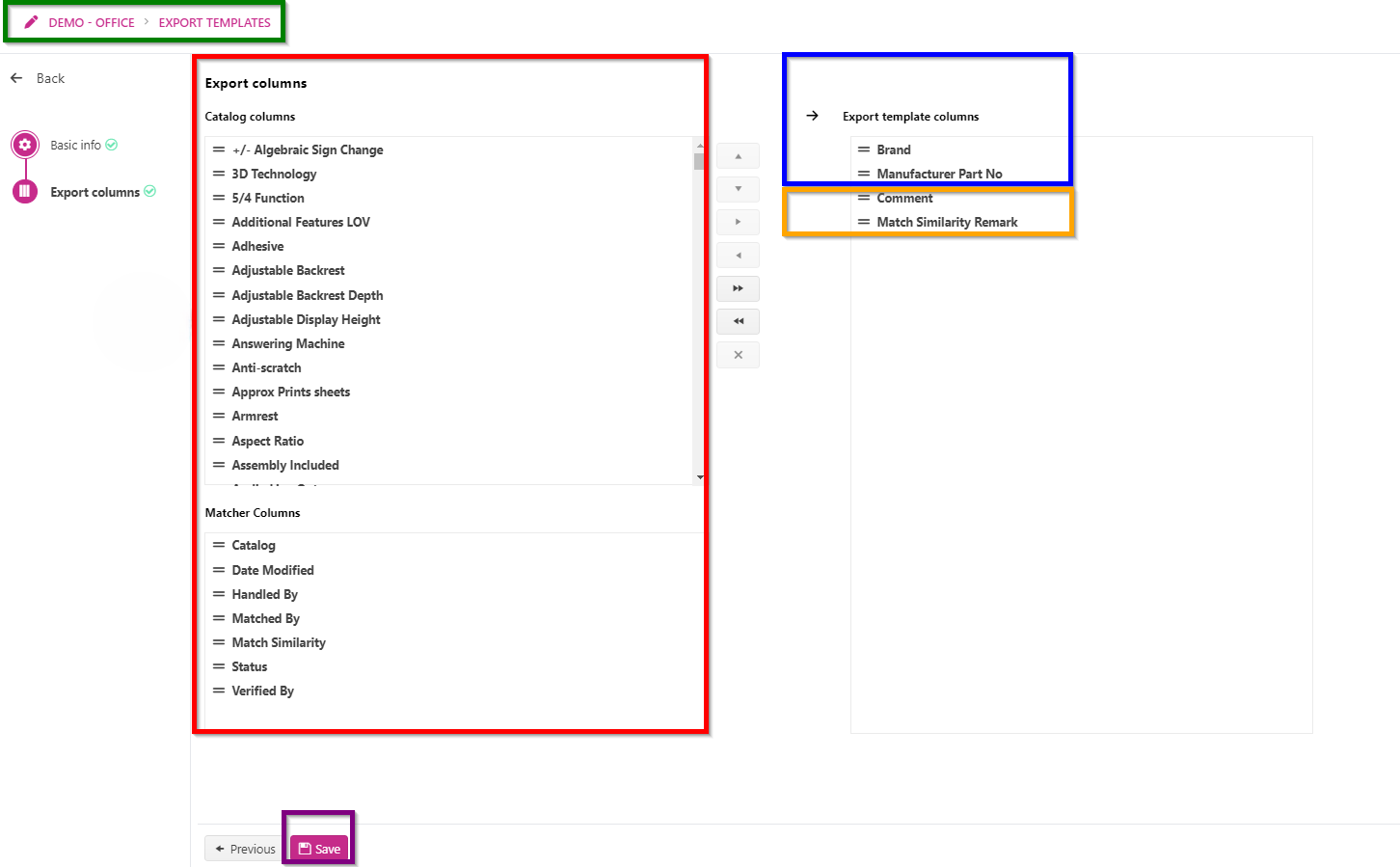
Creating the export order
Select the columns that will be exported when using this template by using the buttons or dragging and dropping them to the box on the right.
-
In the green frame you can see in which catalog you are creating an export template
-
The red frame contains
-
All columns from the current catalog.
-
All columns related to the Matcher
-
-
The blue frame contains the columns that will be exported from the current catalog
-
The orange frame contains the columns that will be exported from the Matcher
-
These columns can be ordered by dragging them or using the up and down buttons after selecting the columns.
-
-
Press the save button in the purple frame to save the template when ready.
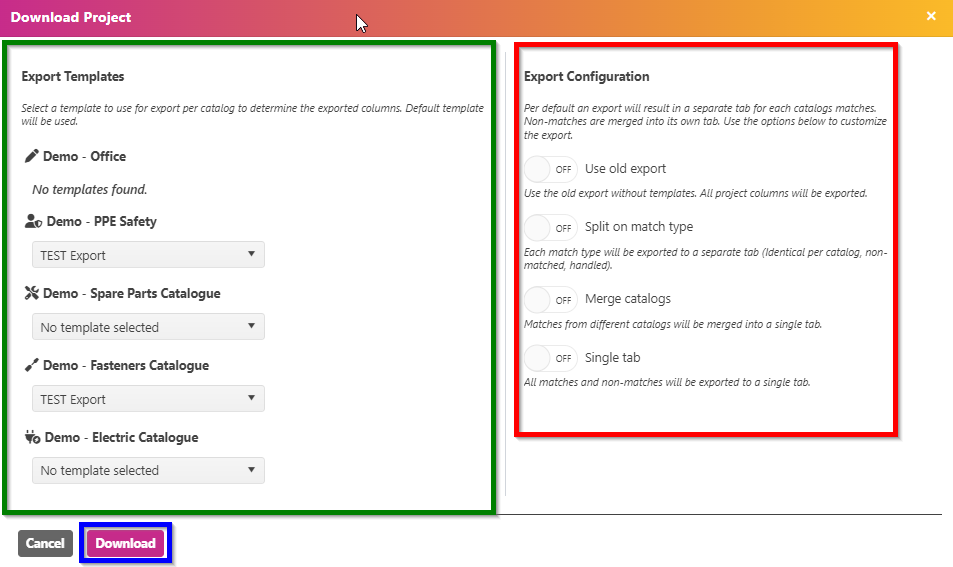
When you have been working on a project and you want to export/download the data, you will get the following pop-up as seen above.
In the green frame you will find the available catalogs and the created export templates per catalog in a drop down menu.
In the red frame we still have available the standard offered export configuration.
When you have defined the way you want to export, just press download in the blue frame