
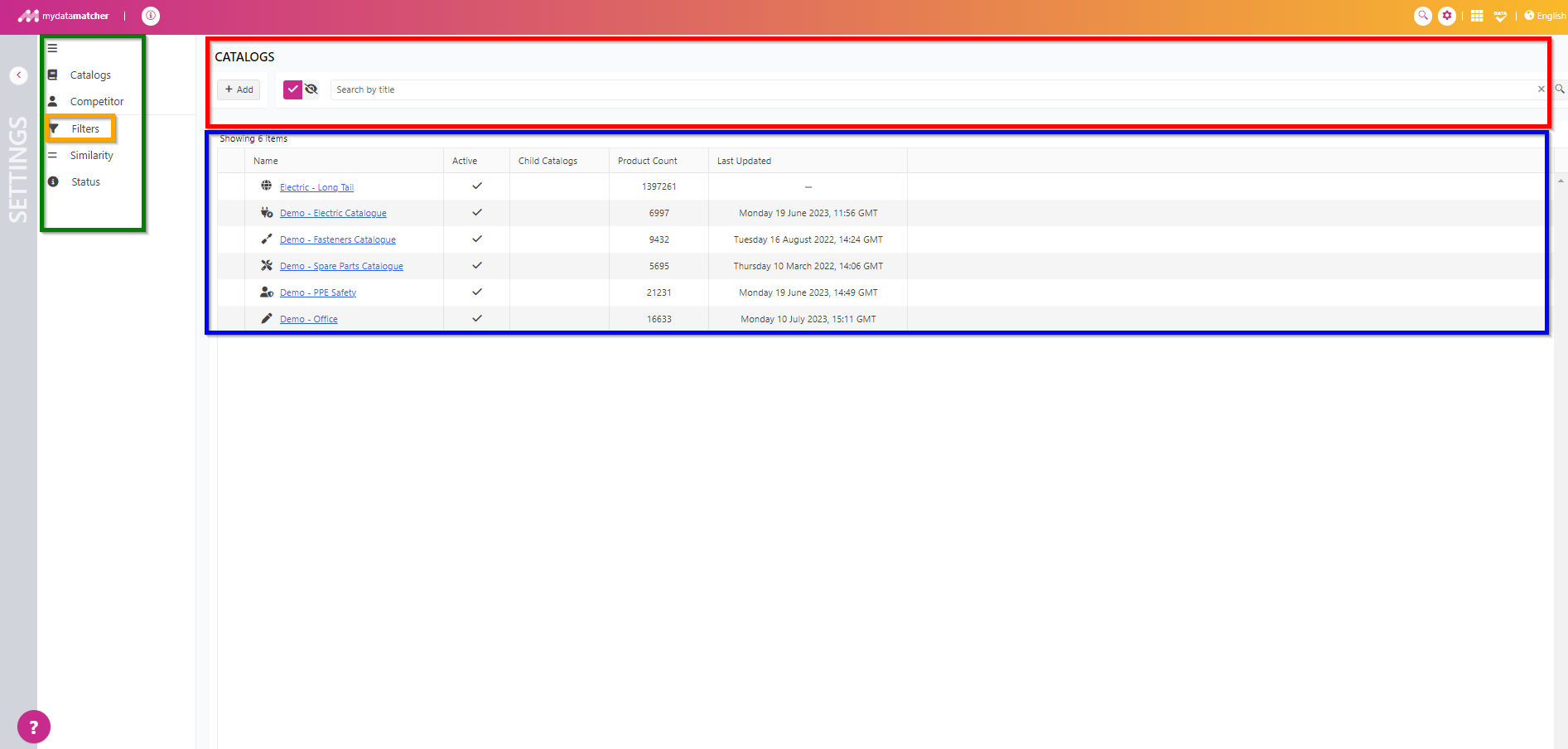
By clicking on the setting icon on the upper right, you will land in the administration window (if you have permissions). The new administrator console enables to manage competitor and catalog data.
Clicking on settings or the grey bar on the left will bring you back to the project overview window.
In the green frame you will find the main menu options, where you can select Filters in the orange frame
Here you can add predefined searches on your own catalog(s).
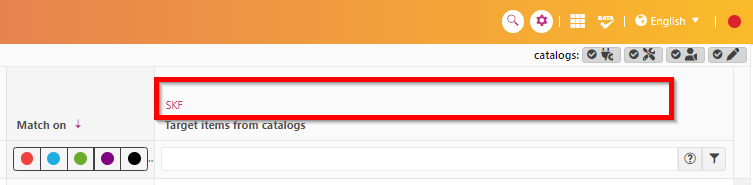
As you can see in the red frame, these filters will appear in the matching window above the filter in the column where the candidates from your catalog(s) are presented

In the blue frame, you can see that the SKF filter is active.
When you want to setup a new filter, just click on the +Add icon in the red frame
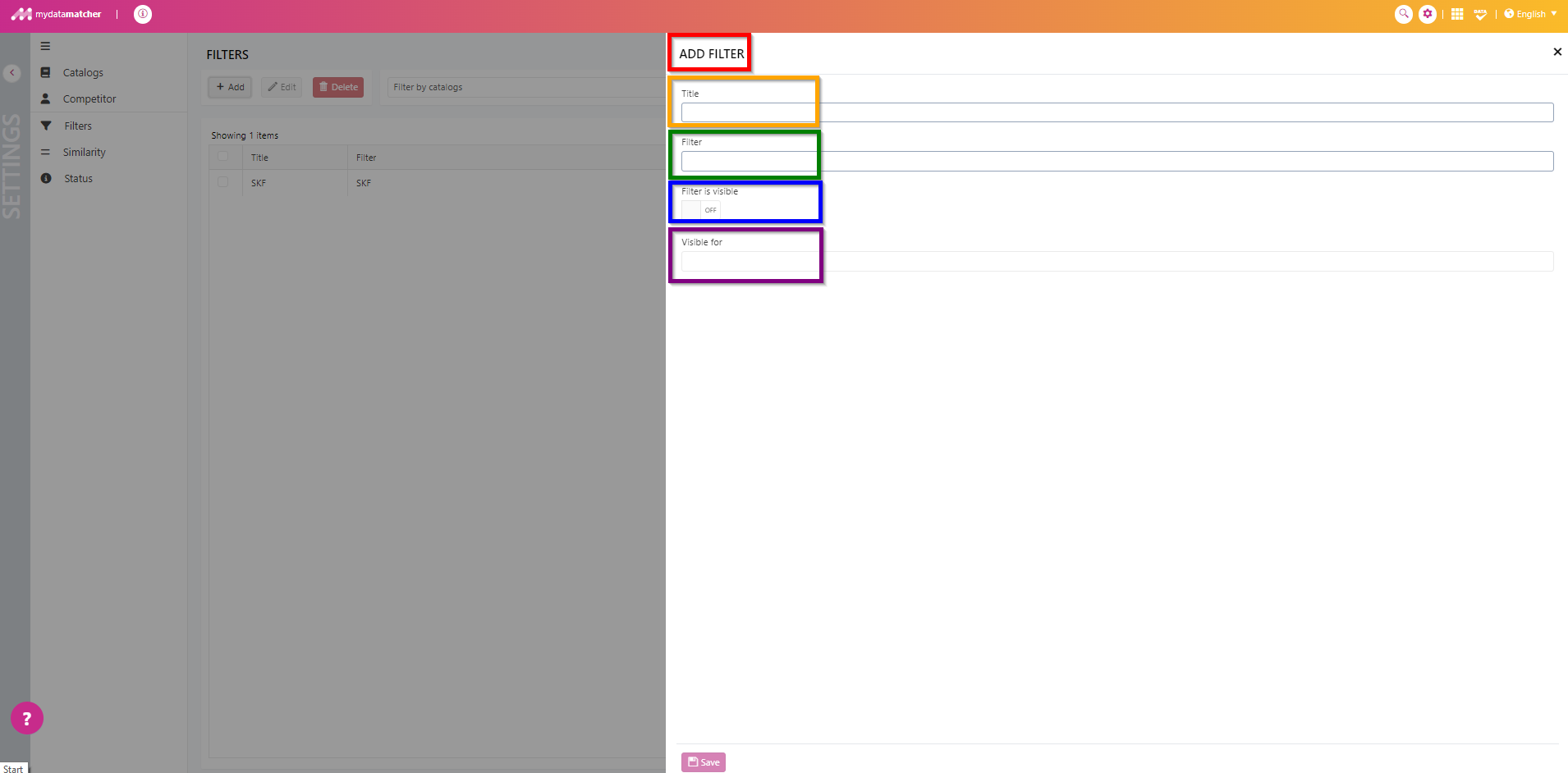
Then the above pop-up will appear.
Red frame: here you are in the add filter section
Orange frame: give a title to the filter
Green frame: filter name. Can be same as title
Blue frame: make it visible above the target items from your catalog section
Purple frame: to which catalog(s) should the filter be linked.
When you are done, click “Save” on the bottom of the page.