
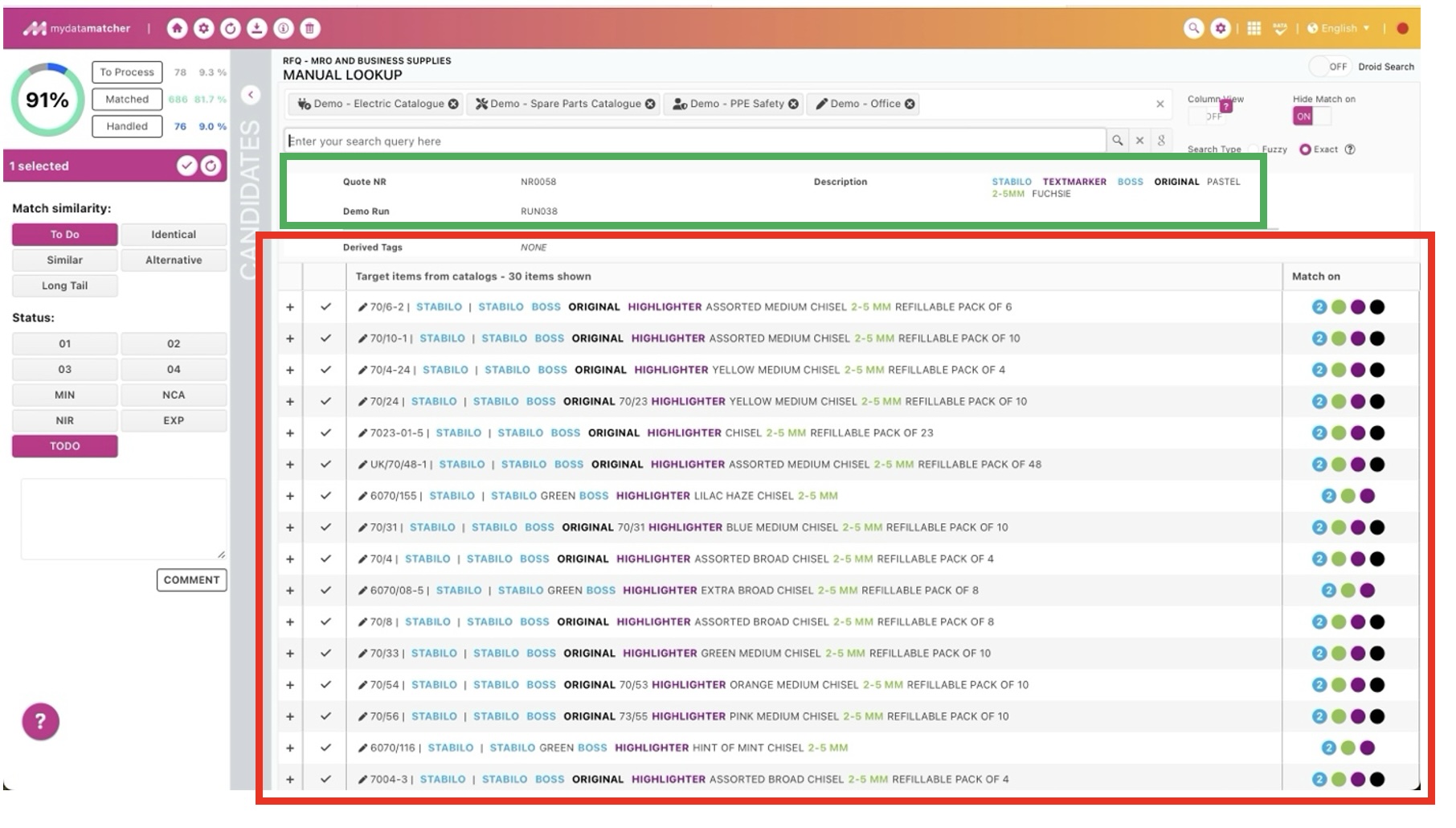
When you click on the alternative & manual look-up in the main matching window, you will land in the window above. It shows a table with all the alternative article the matcher found for the requested product line in the main window.
In the green frame you will find the information of the requested product line.
In the red frame the following information is displayed:
-
The first column that show the + symbol: you can expand and collapse to the detail information.
-
In the second column you can match one of the alternatives by clicking on the checkmark icon: it will be matched as an identical.
-
In the third column you will find article information of each proposed alternative. If you want to match a line as for example an alternative, you select the product by clicking on it in this column and then select the relevant match similarity.
-
In the fourth column you find the colored dots with overlap indication.
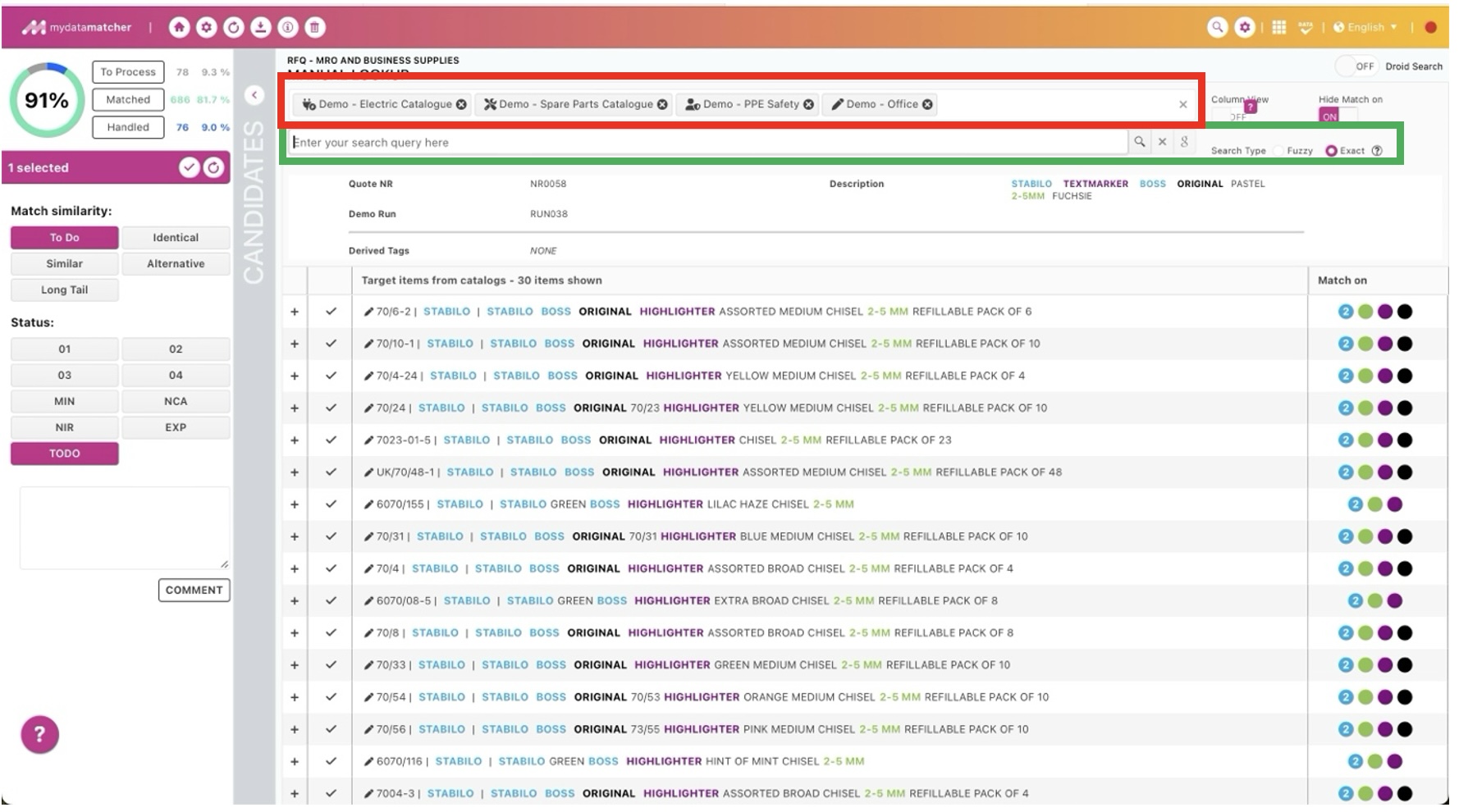
In the red frame you will find the catalogs which are selected for the project. The catalog can be removed from the selection by clicking on the x symbol behind each catalog name. They can be added again by clicking in the empty space behind the last catalog in display. By removing a catalog; products from this catalog in the alternative list will not be visible anymore. Nor will candidates from this catalog be presented when using manual search.
In the green frame you will find the manual look up. You can use the search by simply clicking on terms from the requested product or one of the candidates below or just typing in the terms. The search function is searching in the complete catalog or catalogs, if multiple catalogs are selected.
Advanced search options: you can use wildcards as enhanced search options: a ? replaces one character and a * replaces multiple characters. You can also exclude a term from the search by placing a – directly in front of the term. If this is for example a manufacturer name, no candidates from the manufacturer will be presented.
Clicking on the Google icon will directly bring you to Google Search where the search query is directly executed in Google.
Selecting fuzzy search will have the same result as putting an * for and after each term in the search query.
The ? icon at the end will explain the advanced search options
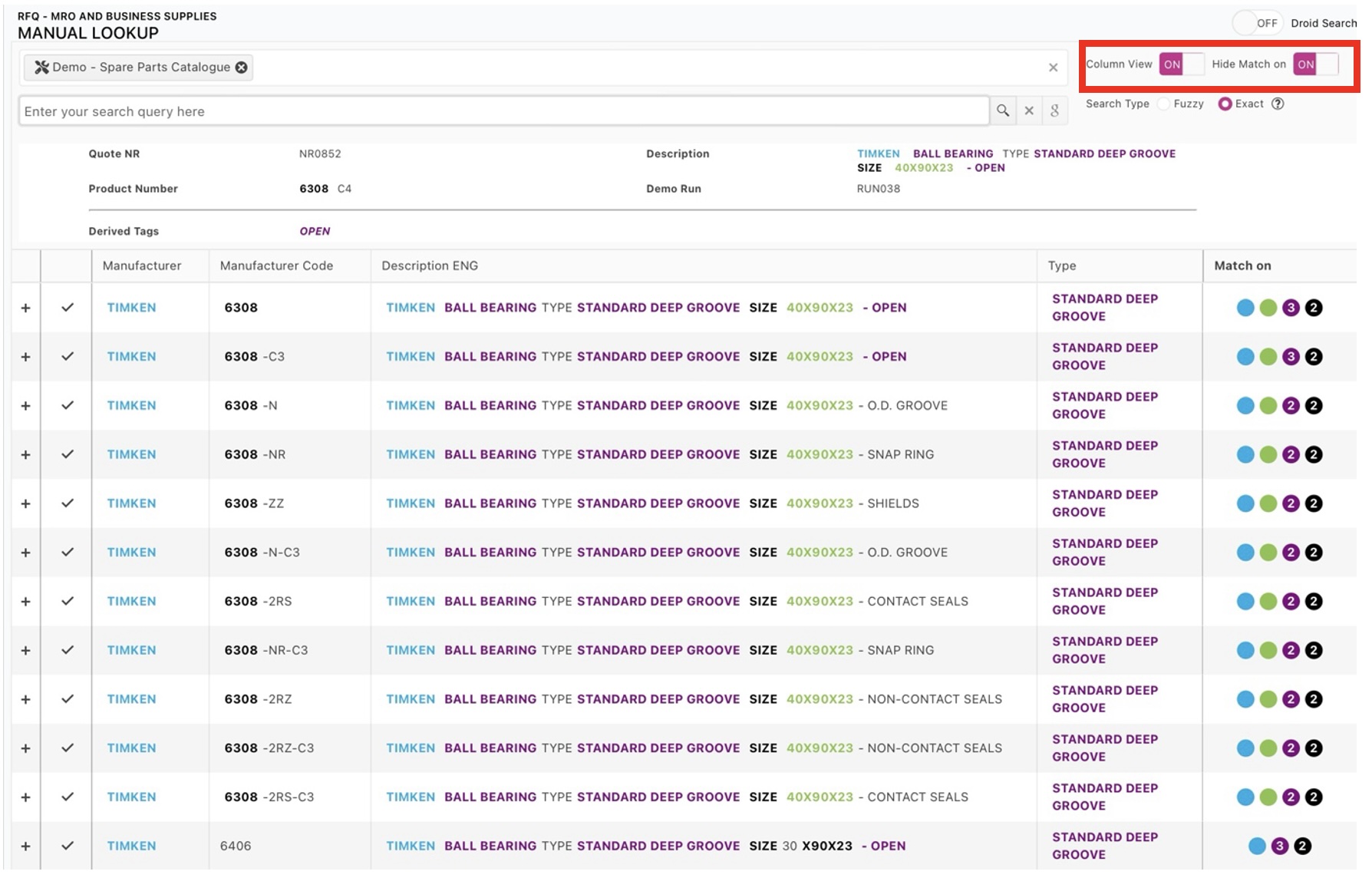
In the red frame we have two options:
-
Column view: this option is only available with one catalog selected. The result can be seen in the table which presents the alternative candidates
-
Hide match on: with this option you can remove the column match on (with the colored dots) in the presentation of the candidates.