
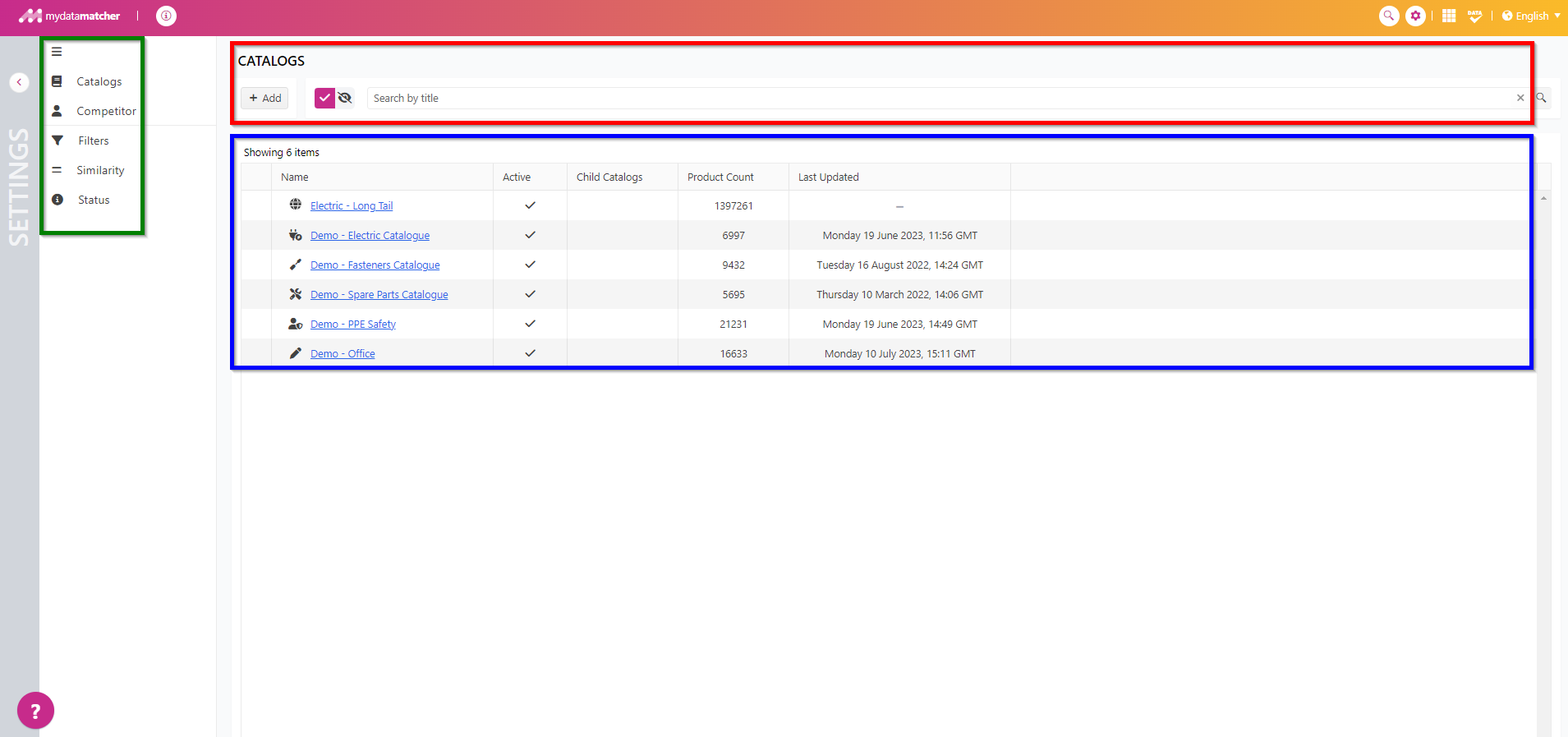
By clicking on the setting icon on the upper right, you will land in the administration window (if you have permissions). The new administrator console enables to manage competitor and catalog data. Other options will be available soon in the new console, but can be reached today via the menu’s overview using Mydatatagger and Mydataconfigurator.
Clicking on settings or the grey bar on the left will bring you back to the project overview window.
In the green frame you will find the main menu options.
We have selected the catalog menu.
In the red frame we have a number of features:
-
Add catalog
-
Delete catalog
-
Filter on active and deactivted catalogs
-
Search for catalogs
Depending on your permissions you are able to use the features.
In the blue frame you are able to view and click on catalogs. You can see if a catalog is activated and if it has child catalogs.
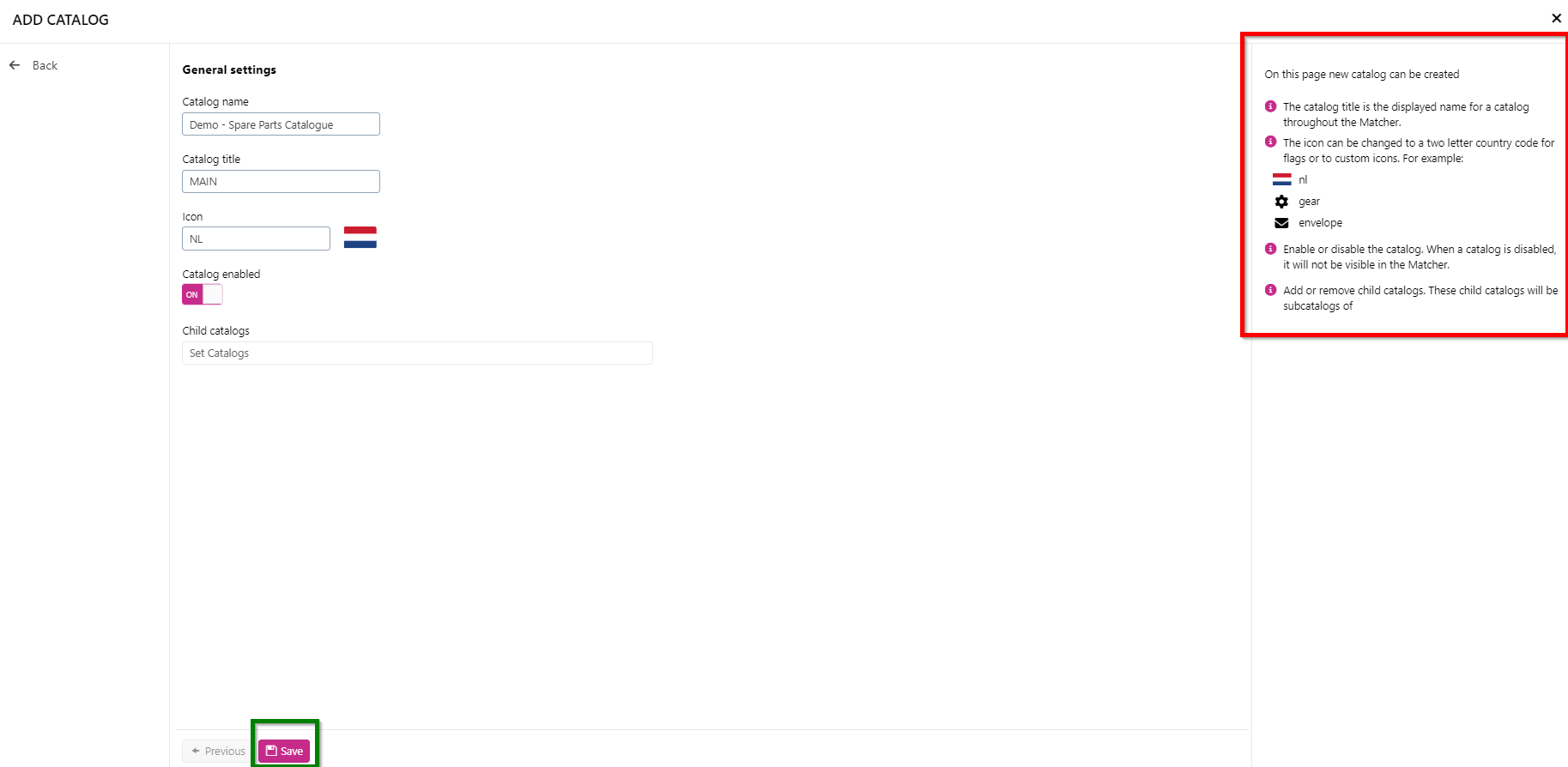
If you click on a catalog in the overview, you will go to the catalog setting for the catalog:
By selecting general settings, you can change catalog settings.
The general settings are explained on the right in the red frame.
Once you changed settings, you apply them by clicking on save in the green frame.
You can leave the window by clicking in the x in the right top corner or on ‘back’ the left upper corner.
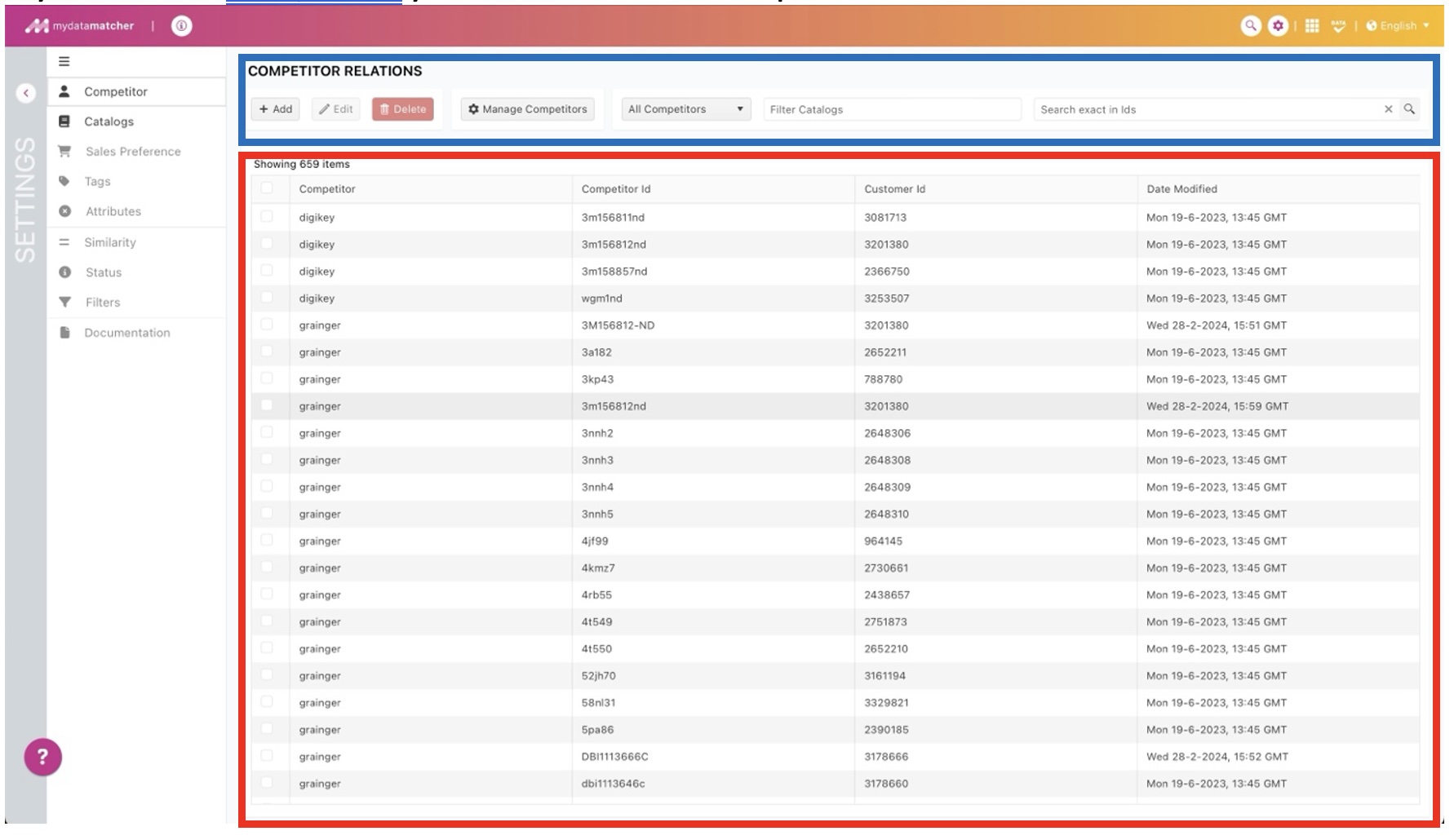
If you click on Competitor you will land in the competitor window.
In the blue frame you will find a number of options, from left to right
-
Add: add a new Competitor product ID and your product ID (in the field Customer ID) and save.
-
Edit: select one line item in the grid below and change the values
-
Delete: select one or more line items in the grid below and confirm deletion
-
Manager competitors: add a new competitor and assign the competitor to one or more catalogs
-
Filter catalog: filter competitor numbers on one or more catalogs
Search exact: an exact search for a specific competitor number, based on your productid of the productid of your competitor.
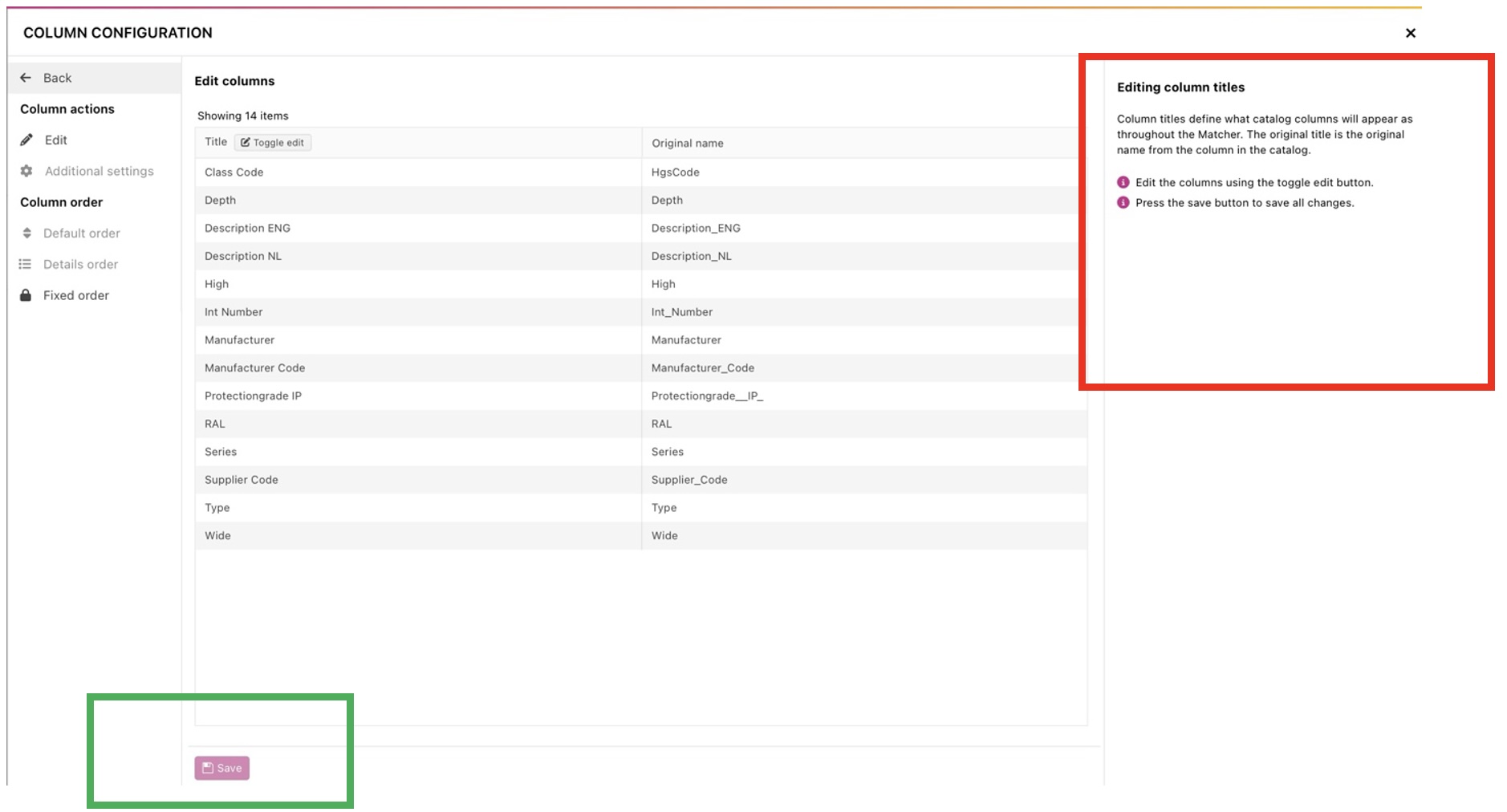
In the red frame there is a explanation on how to edit the column names.
To apply the changes click on save in the green frame.
If you click on the fix order, you can fix columns in the columns view for manual search.
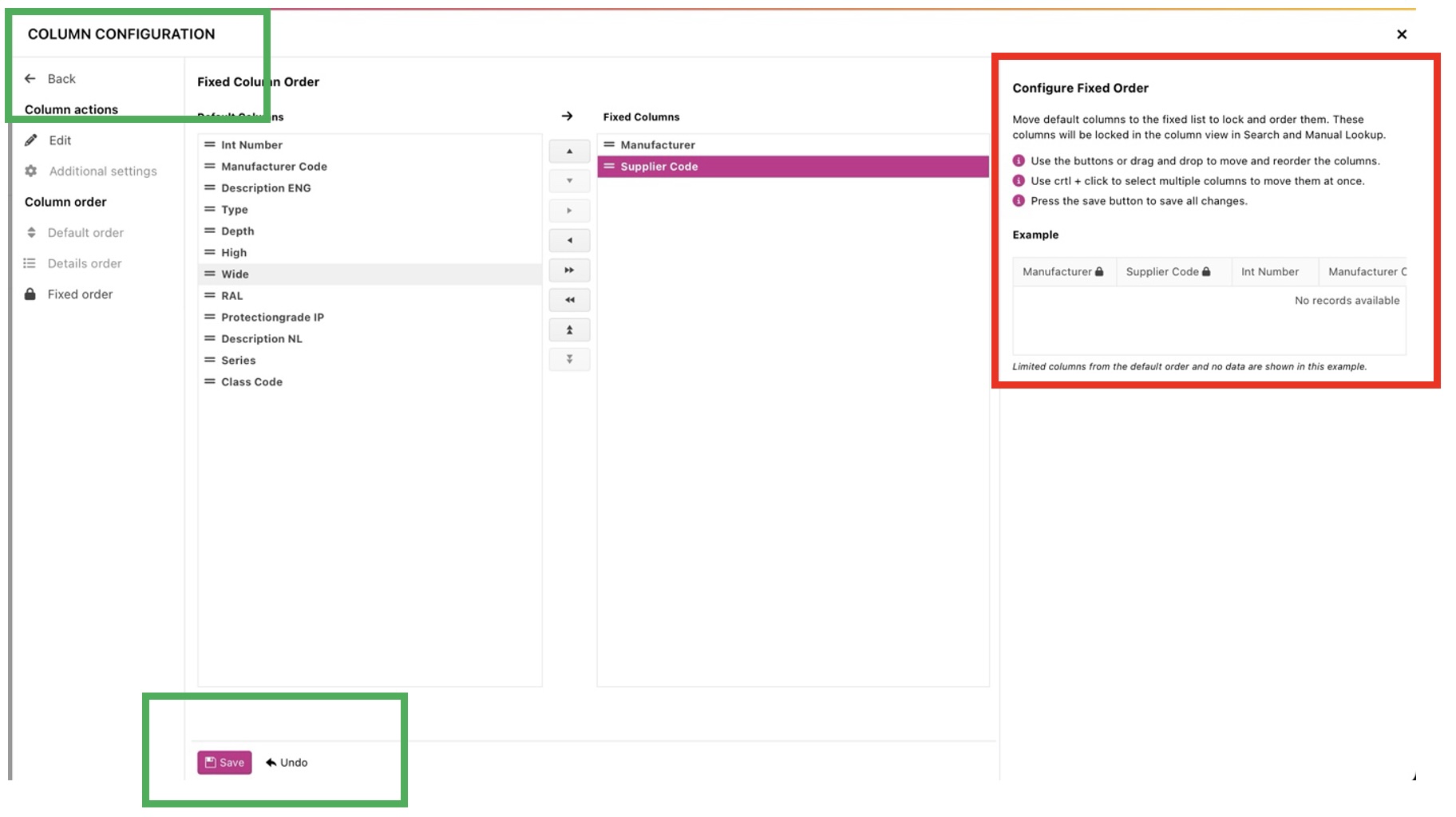
In the red frame there is a explanation on how to fix the column names and also how to change their position in the grid.
To apply the changes click on save in the green frame, or undo to reverse the change.